Sustain
July 13, 2026
· 7 min read
Editing your album: make every page yours

Sustain builds you a finished album in a couple of minutes — but it’s a starting point, not a locked file. The editor lets you touch every detail: swap a photo, re-crop it, change a page’s layout, restyle the whole book with a theme, add captions and decorations, and polish the cover.
This is a tour of what’s possible. You don’t need all of it for a good album — but when you want to change something, here’s where it lives. Every edit is instant and reversible, so poke around freely.
How the editor is laid out
Three things to know your way around:
- The canvas in the middle shows the current page (or two-page spread). Click a photo, text, or decoration to select it.
- The tool rail down the left switches panels: Photos, People, Layouts, Text, Graphics, BG, Themes, plus Music and Animate (marked Digital only — they show in the slideshow, not in print).
- The floating toolbar appears just above whatever you’ve selected, with the actions for that element.
At the top you’ll always find Undo / Redo, your album name, your credit balance, and Save.
Fix a photo: swap, reposition, zoom
Select a photo and the floating toolbar gives you the essentials:
- Swap with another photo — click this, then click any other photo to trade their places. Great when the AI picked a good-but-not-perfect shot.
- Zoom in / Zoom out — scale the photo inside its slot to change the crop, so the faces sit where you want them.
- Show full photo / Fill slot — toggle between seeing the whole image (letterboxed) and filling the frame edge-to-edge.
- Drag to reposition the image within its slot, and use the corner handles to resize elements.
- Remove takes the photo off the page (it stays in your Photos panel to use later).
Change a page’s layout
Open the Layouts panel to restyle the current page — how many photos it holds and how they’re arranged. Pick a preset thumbnail and the page rebuilds around your photos instantly; the one in use is marked Current.
On a two-page spread you can target the Left Page or Right Page separately. (The cover has its own styling — see below.)
Restyle the whole book with a Theme
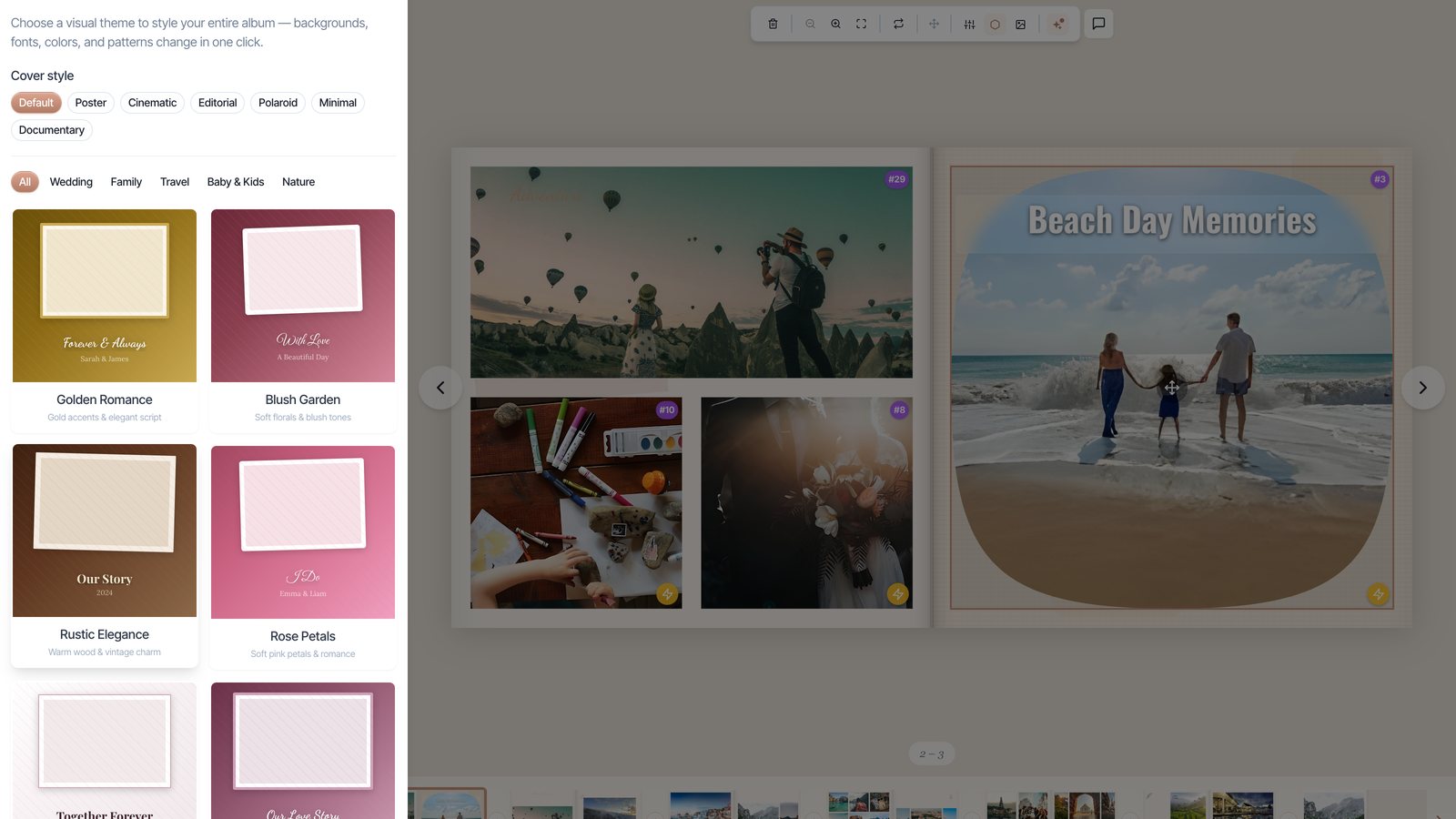
The Themes panel changes your entire album in one click — backgrounds, fonts, colors, and decorative patterns all shift together. Filter by occasion (Wedding, Family, Travel, Baby & Kids, Nature) and try themes like Golden Romance, Modern Editorial, Coastal Escape, or Minimalist.
At the top of the same panel you’ll find Cover style presets — Poster, Cinematic, Editorial, Polaroid, Minimal, Documentary — which restyle just the front cover’s look. Change your mind as often as you like; nothing is committed until you’re happy.
Dress up individual photos
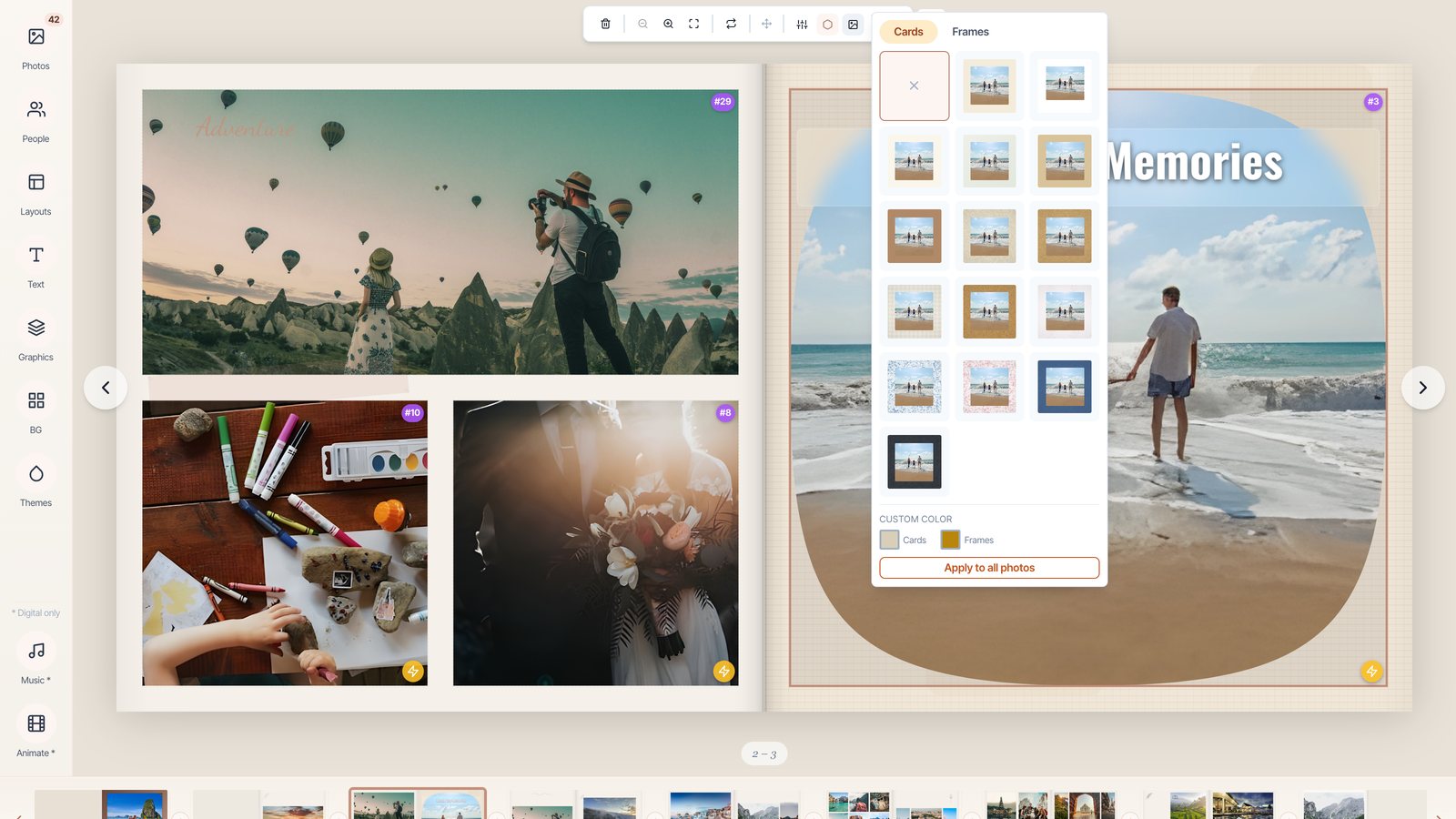
The floating toolbar has three styling tools that work per photo — subtle touches that make a page feel considered:
- Card & Frame — sit a photo on a card (a paper mat like Polaroid, Parchment, Linen, Kraft) and/or add a frame border (Hairline, Rounded, Rustic Wood, Ornate Gold, and more). You can set custom card/frame colors, or Apply to all photos for a consistent look across the book.
- Filters — a one-click color grade: Black & White, Sepia, Vintage, Warm, Cool, Dramatic, Soft, and others.
- Shape — mask a photo into a Circle, Rounded, Diamond, Hexagon, Heart, Star, Arch, or an organic Blob.
Tip
A little goes a long way. Picking one card + frame style and using Apply to all photos keeps the whole album looking like it belongs together.
Add titles, captions, and text
Open the Text panel to drop in styled text — a Title, Subtitle, Body paragraph, Caption, a Quote, or Text on Photo. There are ready-made photo overlays too (Gradient Fade, Frosted Glass, Cinematic Bar, Letterpress, Outlined, Golden Text) for text that sits legibly over an image.
Double-click any text to edit it. Its toolbar lets you change font, size, bold/italic, color, alignment, and rotation. Titles and captions the AI wrote are all editable the same way.
Graphics, backgrounds, and people
- Graphics adds decorative elements — stickers, corners, dividers, borders, florals, washi tape, phrases, icons — click or drag them onto a page.
- BG sets a page background image; the Theme Match section suggests ones that fit your theme, and you can Apply to all content pages at once.
- People finds the faces in your photos so you can name them once. After tagging, Sustain can redo the album texts to weave those names into titles and captions.
AI touch-ups on a single photo
Select a photo and open its ✨ AI tools menu:
- Enhance runs an AI upscale (super-resolution) on a photo — the fix for a shot flagged Low resolution that would look soft in print. When it’s done you can click to compare the original and enhanced versions.
- Animate turns a still into a short living clip that plays in the digital slideshow (see our animated photo books guide).
Good to know
AI touch-ups like Enhance and Animate use a few credits per photo, drawn from the balance shown in the top bar. Ordinary editing — layouts, themes, text, cards, filters — is free and unlimited.
Rearrange the book: pages and spreads
Along the bottom you can see every spread (two facing pages) as a thumbnail. From there you can Add Page, Remove Page, and drag to reorder spreads. Use Previous / Next Page or the spreads view to move through the book. The cover and back cover stay put, and every album keeps at least one content spread.
Nothing is permanent
Every change is instant and reversible. Undo and Redo live in the top bar, your original photos are never altered by edits or filters, and Save stores your work as a new version. When the book looks right, head to Export to download a PDF, order a printed copy, or share a digital link.
And if hands-on tweaking isn’t your thing, you can just ask — the AI Album Designer chat makes most of these same changes from a plain-language request. See how to use the chat.
Frequently asked questions
Ready to try it?
Open your albumKeep reading
Creating your first album
From a folder of photos to a finished, story-told book — here’s exactly how to make your first album, step by step.
Using the AI chat: talk your album into shape
The fastest way to change your album is to ask. Here’s how to phrase requests so the AI Album Designer nails them the first time.